Getting started: the Drive screen
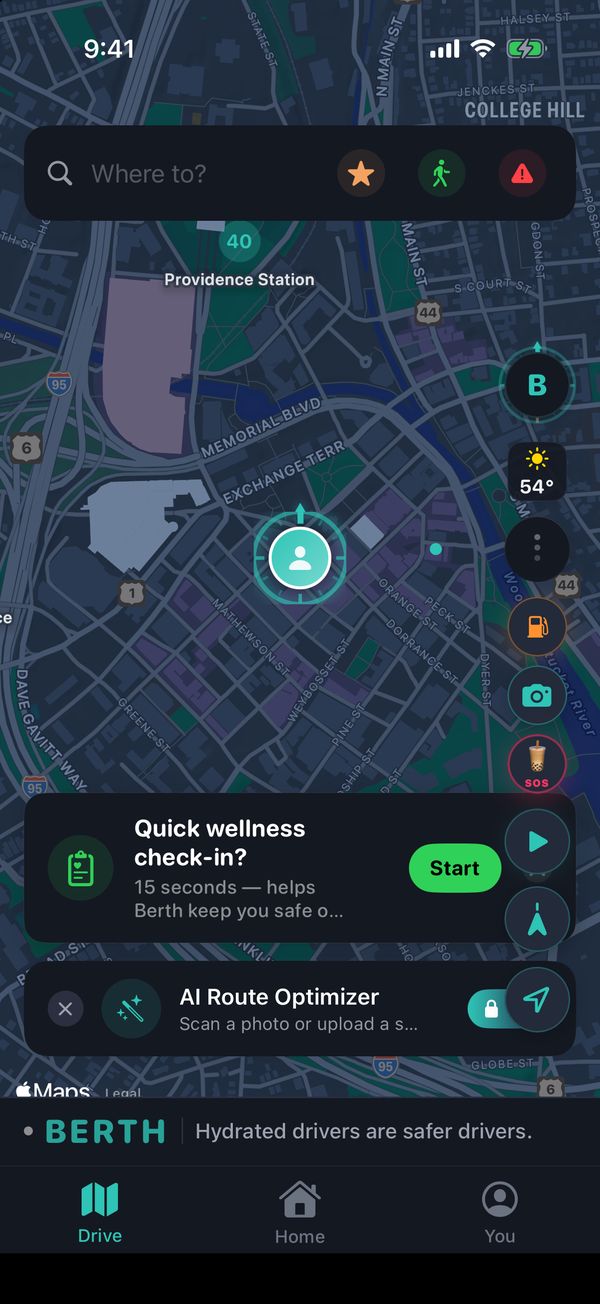
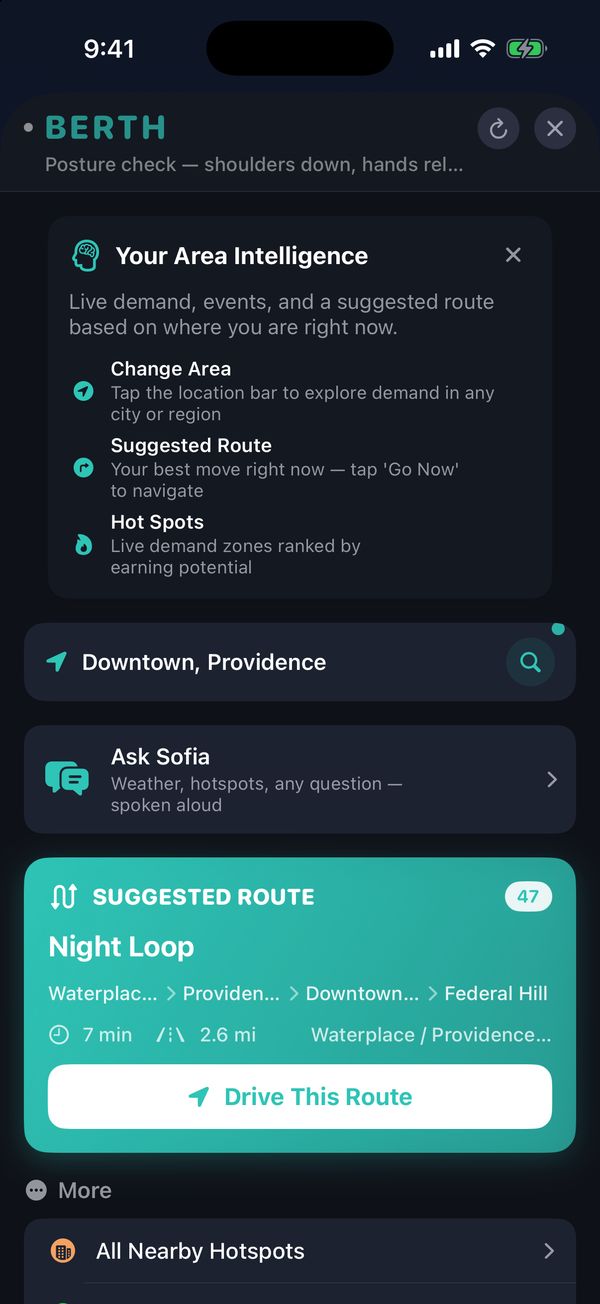
Berth opens on the Drive tab: a map centered on you, with search at the top and the tab bar at the bottom (Drive, Home, You).
- Tap Where to? and type an address or a place name. Pick a result to see routes, then tap Go.
- The Home button in the tab bar routes you home in one tap once you've set your home address.
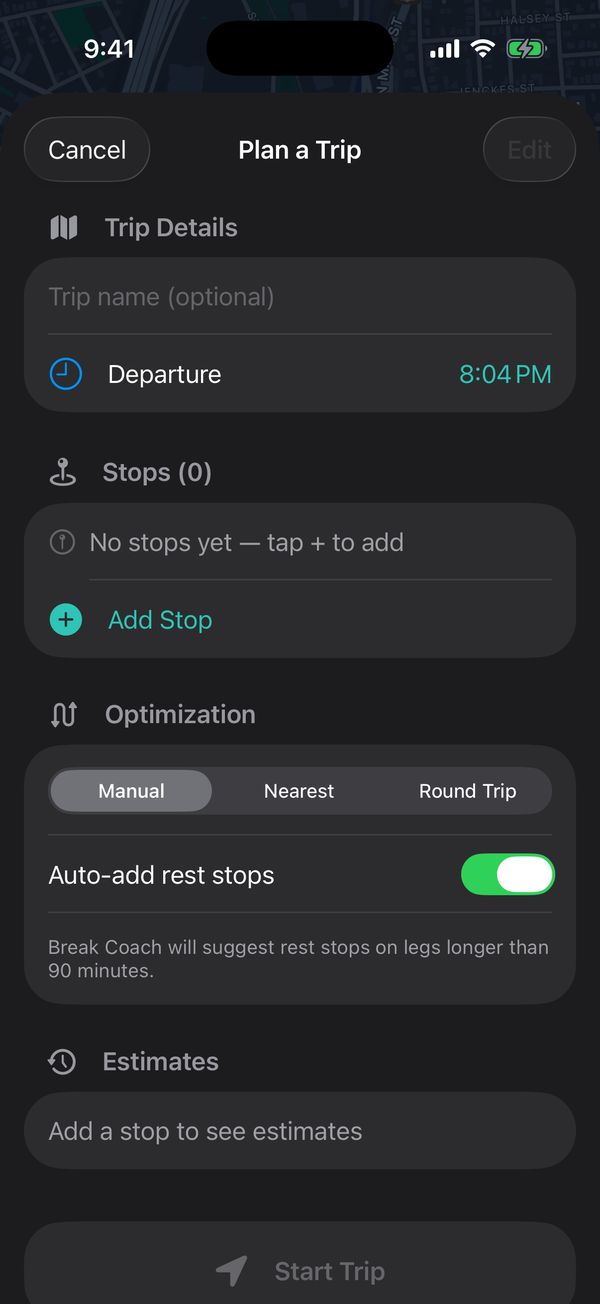
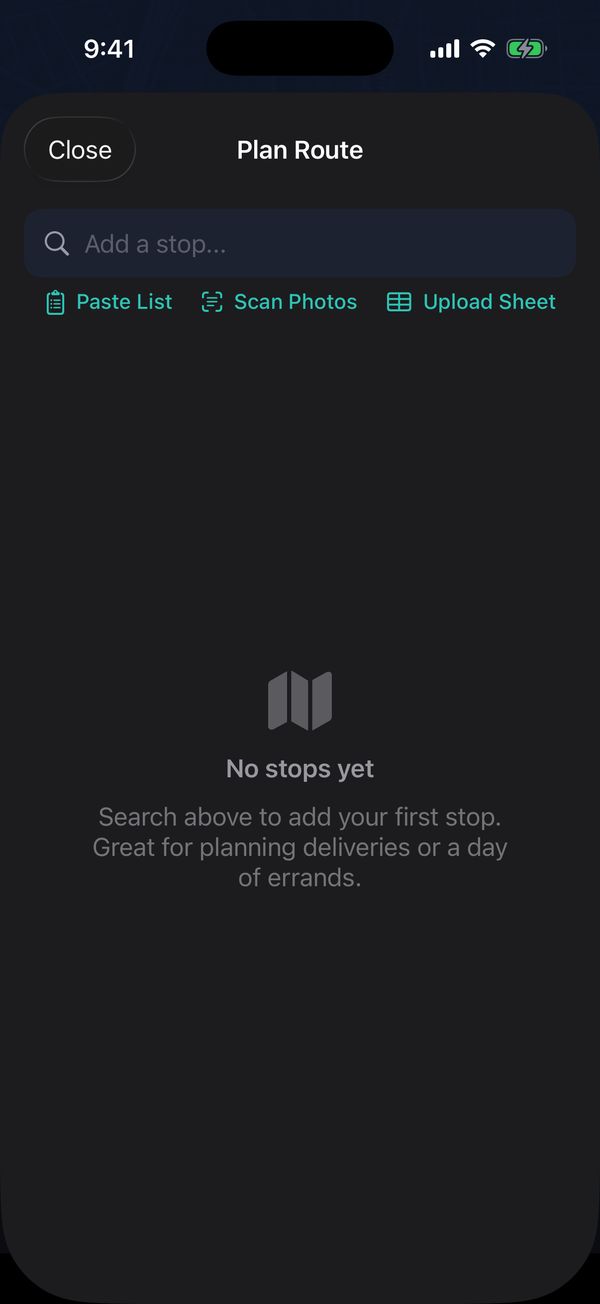
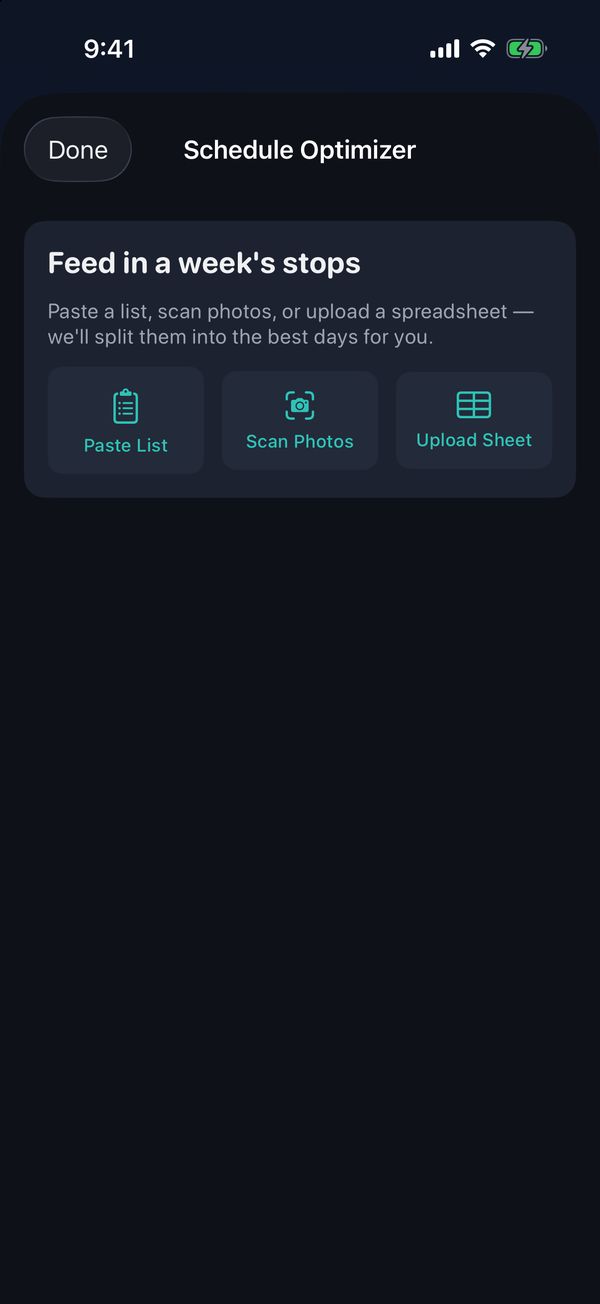
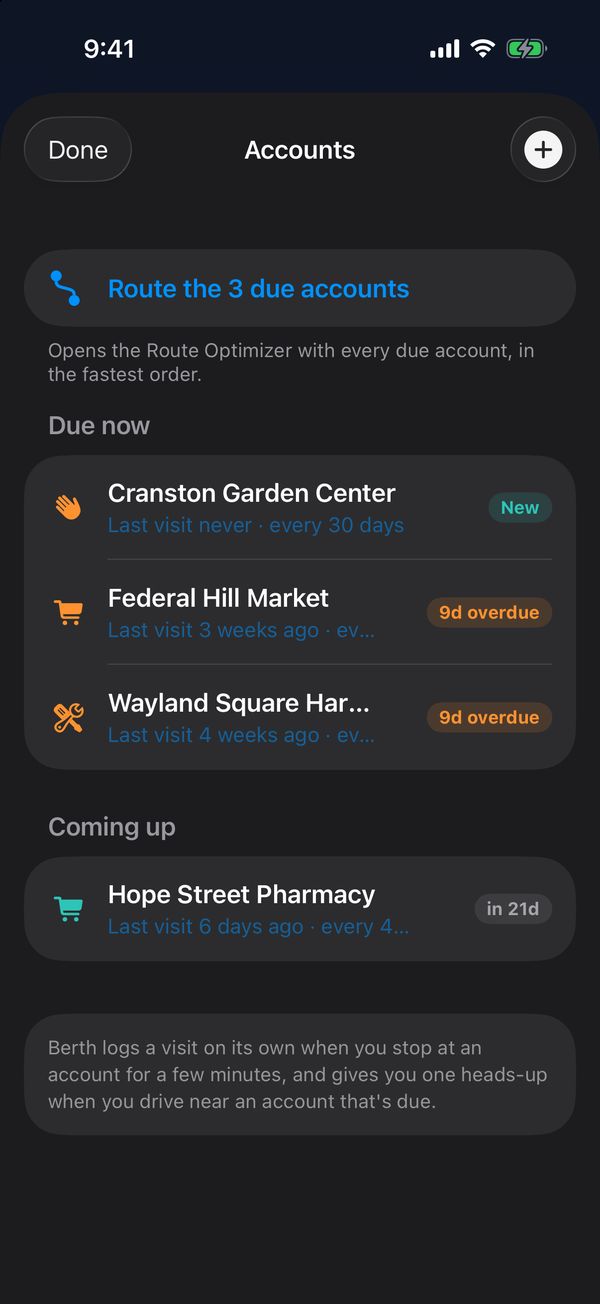
- The AI Route Optimizer card on the map is the shortcut for multi-stop days. It's a Berth Pro feature, so without Pro it shows a Pro tag and opens the upgrade screen (see Berth Pro features below).
- Tap the map once to recenter on yourself; the arrow button brings back follow mode while driving.
Tip: While you navigate, the banner shows your next turn and the street, city and ZIP you're on.
Tip: If the app closes or updates mid-drive, just open it again. Your trip picks back up where you left off.